
Set up and connect Azure OpenAI
To use the AI services in Aeneis, you must set up Azure OpenAI with certificate-based Entra ID authentication accordingly.
Requirements
-
Azure Entra ID with authorization to create app registrations and role mapping on the Azure OpenAI resource
-
Azure OpenAI resources provided (region, deployments/models, quota)
-
OpenSSL on the system on which Aeneis is running
-
Use of the corresponding certificate files in Entra ID and the application.yml in the Aeneis application directory
-
Aeneis service account with read access to the certificate files
Set up app registration in Entra ID
To use AI services in Aeneis, set up your app registration in Entra ID accordingly.
Instructions:
-
Create a new app registration
-
Give the app registration a name
-
Make sure that the option Accounts in this organizational directory only is selected under Supported account types
-
Make a note of the Directory (tenant) ID and application (client) ID
Generate certificate files
To connect the OpenAI services, create a certificate with an SSL tool, e.g. OpenSSL. Use a script to create the following necessary files.
- aoai-key.enc.pem (encrypted private key, PKCS#8)
- aoai-cert.csr (CSR)
- aoai-cert.pem (self-signed, for Entra upload)
- aoai-key.pass (passphrase, without newline)
- aoai-cert.cer (Base64 from PEM), if the Azure portal prefers CER files
Create certificate files via PowerShell
Create a script in PowerShell according to the following example and execute it to generate the certificate files.
# Generates encrypted private key (PKCS#8), CSR, self-signed certificate, and passphrase file.
$ErrorActionPreference = "Stop"

# --- Paths ---
# >>>  CUSTOMIZE: Base directories for AOAI assets and passphrase file.
$AoaiDir  = "C:\Users\PUBLIC\aeneis\aoai"
$PassDir  = "C:\Users\PUBLIC\aeneis\pass"

# >>> CUSTOMIZE: CUSTOMIZE: File names (if desired)
$KeyEnc   = Join-Path $AoaiDir "aoai-key.enc.pem"
$Csr      = Join-Path $AoaiDir "aoai-cert.csr"
$CertPem  = Join-Path $AoaiDir "aoai-cert.pem"
$CertCer  = Join-Path $AoaiDir "aoai-cert.cer"   # (optional) CER from PEM
$ExtCnf   = Join-Path $AoaiDir "ext.cnf"
$PassFile = Join-Path $PassDir "aoai-key.pass"

$CreatedPaths = @()

if (-not (Get-Command openssl -ErrorAction SilentlyContinue)) {
  throw "OpenSSL was not found. Please install OpenSSL or place openssl.exe in the PATH."
}

New-Item -ItemType Directory -Force $AoaiDir | Out-Null
New-Item -ItemType Directory -Force $PassDir | Out-Null

# --- Request passphrase ---
# >>> CUSTOMIZE: Enforce minimum length/policy as needed
$sec = Read-Host "Please enter passphrase for aoai-key.enc.pem" -AsSecureString
$bstr = [Runtime.InteropServices.Marshal]::SecureStringToBSTR($sec)
try {
  $plain = [Runtime.InteropServices.Marshal]::PtrToStringBSTR($bstr)
} finally {
  if ($bstr -ne [IntPtr]::Zero) { [Runtime.InteropServices.Marshal]::ZeroFreeBSTR($bstr) }
}
if ([string]::IsNullOrWhiteSpace($plain)) { throw "No passphrase entered." }

# 1) Encrypted Private Key (RSA-3072, AES-256)
if (-not (Test-Path $KeyEnc)) {
  # >>> CUSTOMIZE (optional): rsa_keygen_bits (z.B. 4096)
  & openssl genpkey -algorithm RSA -aes256 -pkeyopt rsa_keygen_bits:3072 -out "$KeyEnc" -pass pass:$plain
  if (Test-Path $KeyEnc) { $CreatedPaths += $KeyEnc }
}

# 2) CSR
if (-not (Test-Path $Csr)) {
  # >>> CUSTOMIZE: DN (Company/Location/CN)
  & openssl req -new -key "$KeyEnc" -out "$Csr" `
    -subj "/C=XX/ST=STATE/O=Example Company/CN=EXAMPLE-CLIENT" `
    -passin pass:$plain
  if (Test-Path $Csr) { $CreatedPaths += $Csr }
}

# 3) Extensions file
@"
[ext]
keyUsage = digitalSignature,keyEncipherment
extendedKeyUsage = clientAuth
"@ | Set-Content -Path "$ExtCnf" -Encoding ASCII
if (Test-Path $ExtCnf) { $CreatedPaths += $ExtCnf }

# 4) Self-signed certificate
if (-not (Test-Path $CertPem)) {
  # >>> CUSTOMIZE: Validity days
  & openssl x509 -req -days 365 -in "$Csr" -signkey "$KeyEnc" -out "$CertPem" -extfile "$ExtCnf" -extensions ext -passin pass:$plain
  if (Test-Path $CertPem) { $CreatedPaths += $CertPem }
}

# 4a) Generate CER from PEM – for Entra upload
if ((Test-Path $CertPem) -and -not (Test-Path $CertCer)) {
  & openssl x509 -in "$CertPem" -outform PEM -out "$CertCer"
  if (Test-Path $CertCer) { $CreatedPaths += $CertCer }
  #  Alternative (DER format):
  # & openssl x509 -in "$CertPem" -outform DER -out "$CertCer"
}

# 5) Passphrase file
# >>> Note: Contains plaintext passphrase – restrict NTFS ACLs!
if (-not (Test-Path $PassFile)) {
  [System.IO.File]::WriteAllText($PassFile, $plain, [System.Text.Encoding]::ASCII)
  if (Test-Path $PassFile) { $CreatedPaths += $PassFile }
}

# Clean up
$plain = $null

# Output only paths of newly created files
$CreatedPaths | ForEach-Object { Write-Host $_ }
Create certificate files via Bash for Linux
Create a script in Bash according to the following example and execute it to generate the certificate files.
#!/usr/bin/env bash
set -euo pipefail

# --- Paths ---
# >>> CUSTOMIZE: Base directories for AOAI assets and passphrase file.
AOAI_DIR="${HOME}/aeneis/aoai"
PASS_DIR="${HOME}/aeneis/pass"

# >>> CUSTOMIZE: CUSTOMIZE: File names (if desired)
KEY_ENC="${AOAI_DIR}/aoai-key.enc.pem"
CSR="${AOAI_DIR}/aoai-cert.csr"
CERT_PEM="${AOAI_DIR}/aoai-cert.pem"
CERT_CER="${AOAI_DIR}/aoai-cert.cer"   # (optional) CER from PEM
EXT_CNF="${AOAI_DIR}/ext.cnf"
PASS_FILE="${PASS_DIR}/aoai-key.pass"

declare -a CREATED

command -v openssl >/dev/null 2>&1 || { echo "OpenSSL not found:"; exit 1; }

mkdir -p "$AOAI_DIR" "$PASS_DIR"

# ---  Request passphrase ---
# >>> CUSTOMIZE: Minimum length/policy as required
read -r -s -p "Please enter passphrase for aoai-key.enc.pem:" PLAIN
echo
[[ -z "${PLAIN// }" ]] && { echo "No passphrase entered."; exit 1; }

# 1) Encrypted Private Key (RSA-3072, AES-256-CBC)
if [[ ! -f "$KEY_ENC" ]]; then
  # >>> CUSTOMIZE (optional): rsa_keygen_bits (z.B. 4096)
  openssl genpkey -algorithm RSA -aes-256-cbc -pkeyopt rsa_keygen_bits:3072 \
    -out "$KEY_ENC" -pass pass:"$PLAIN"
  [[ -f "$KEY_ENC" ]] && CREATED+=("$KEY_ENC")
fi

# 2) CSR
if [[ ! -f "$CSR" ]]; then
  # >>> CUSTOMIZE: DN (Company/Location/CN)
  openssl req -new -key "$KEY_ENC" -out "$CSR" \
    -subj "/C=XX/ST=STATE/O=Example Company/CN=EXAMPLE-CLIENT" \
    -passin pass:"$PLAIN"
  [[ -f "$CSR" ]] && CREATED+=("$CSR")
fi

# 3) Extensions file
cat > "$EXT_CNF" <<'EOF'
[ext]
keyUsage = digitalSignature,keyEncipherment
extendedKeyUsage = clientAuth
EOF
[[ -f "$EXT_CNF" ]] && CREATED+=("$EXT_CNF")

# 4) Self-signed certificate
if [[ ! -f "$CERT_PEM" ]]; then
  # >>> CUSTOMIZE: Validity days
  openssl x509 -req -days 365 -in "$CSR" -signkey "$KEY_ENC" -out "$CERT_PEM" \
    -extfile "$EXT_CNF" -extensions ext -passin pass:"$PLAIN"
  [[ -f "$CERT_PEM" ]] && CREATED+=("$CERT_PEM")
fi

# 4a) Generate CER from PEM – for Entra upload
if [[ -f "$CERT_PEM" && ! -f "$CERT_CER" ]]; then
  openssl x509 -in "$CERT_PEM" -outform PEM -out "$CERT_CER"
  [[ -f "$CERT_CER" ]] && CREATED+=("$CERT_CER")
  # Alternative (DER format):
  # openssl x509 -in "$CERT_PEM" -outform DER -out "$CERT_CER"
fi

# 5) Passphrase file
# >>> Note: Contains plaintext passphrase – restrict file permissions!
if [[ ! -f "$PASS_FILE" ]]; then
  umask 0077
  printf "%s" "$PLAIN" > "$PASS_FILE"
  [[ -f "$PASS_FILE" ]] && CREATED+=("$PASS_FILE")
fi

unset PLAIN

# Only output paths of newly created files
for p in "${CREATED[@]:-}"; do
  echo "$p"
done
Upload public certificate in Entra ID
To log in via ClientCertificateCredential, you must upload the public certificate in Entra ID in the app registration.
Instructions:
-
In Microsoft Entra ID, open the Certificates & secrets section of the app registration that you use in Aeneis for the Azure Open AI service
-
In the Certificates tab, use the Upload certificate button to upload the PEM file that you have generated in your SSL tool
Set up role-based access control on the Azure OpenAI resource
Assign roles to the app registration (service principal) on the Azure OpenAI resource under Access Control (IAM) via Add role assignment:
-
Cognitive Services OpenAI User
-
Cognitive Services OpenAI Contributor
extend application.yml
To set up Azure OpenAI on the Aeneis side, extend the application.yml in the application directory as in the following example.
Note: Adjust the entries in the example according to your configuration.
azure-openai:
tenant-id: YOUR_TENANT_ID
client-id: YOUR_CLIENT_ID
endpoint: https://<RESOURCE_NAME>.services.ai.azure.com/
gpt-5-mini: gpt-5-mini
gpt-4o: gpt-4o
pem-cert-file: C:\Users\bob\aeneis\aoai\aoai-cert.pem # >>> CUSTOMIZE
pem-key-file: C:\Users\bob\aeneis\aoai\aoai-key.enc.pem # >>> CUSTOMIZE
pem-passphrase-file: C:\Users\bob\aeneis\aoai\pass\aoai-key.pass # >>> CUSTOMIZE
billing:
models:
gpt-5-mini: {inputPricePerMillionEur: 0.22, outputPricePerMillionEur: 1.74}
gpt-4o: {inputPricePerMillionEur: 2.18, outputPricePerMillionEur: 8.7}Important notes:
- The paths to the certificate data must be exact.
- The Aeneis service account requires read access to all three certificate files.
- If you are using Linux, specify paths with / (e.g. /opt/aeneis/aoai/aoai-cert.pem).
Set AI credit limit
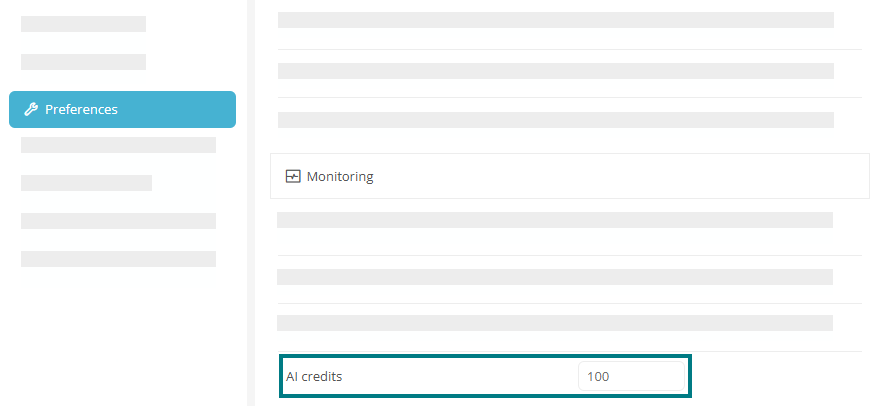
In Aeneis, AI credits represent a variable quota of AI requests that is renewed and reset monthly. If you use Aeneis On-Premise, you can set a monthly upper limit for AI requests in the ServerAdministration Preferences via the AI credits property.
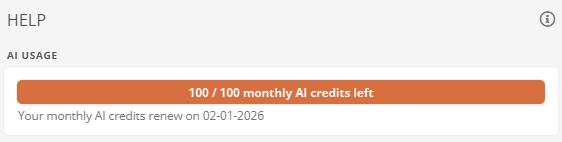
You can view the current usage of AI credits via Help in the Portal header.
Perform function test
Once you have completed the setup, you can carry out a function test.
Instructions:
-
Start Aeneis
-
Open the chatbot in the Portal and ask a question
Troubleshooting
If one of the following symptoms occurs, you can remedy the situation as follows:
|
Symptom |
Cause |
Action |
|---|---|---|
|
401 invalid_client |
Public certificate not uploaded/differently uploaded |
Upload aoai-cert.pem or aoai-cert.cer in Entra ID again; check thumbprint/expiration |
|
403 Forbidden |
Role missing |
Assign OpenAI User and OpenAI Contributor to resource |
|
404 Deployment not found |
Incorrect deployment name |
Check names under Deployments and adapt application.yml |
|
TLS/Key error |
Incorrect format or passphrase |
Ensure PKCS#8, check paths, aoai-key.pass without newline |
|
No streaming |
Proxy/Firewall/Endpoint |
*enable .services.ai.azure.com; check TLS inspection |
|
Locally ok, as a service not |
File rights |
Set read access of the service account to all 3 files |
|
Portal only accepts .cer |
PEM is rejected |
create .cer from PEM (see step 3 "4a") and upload |